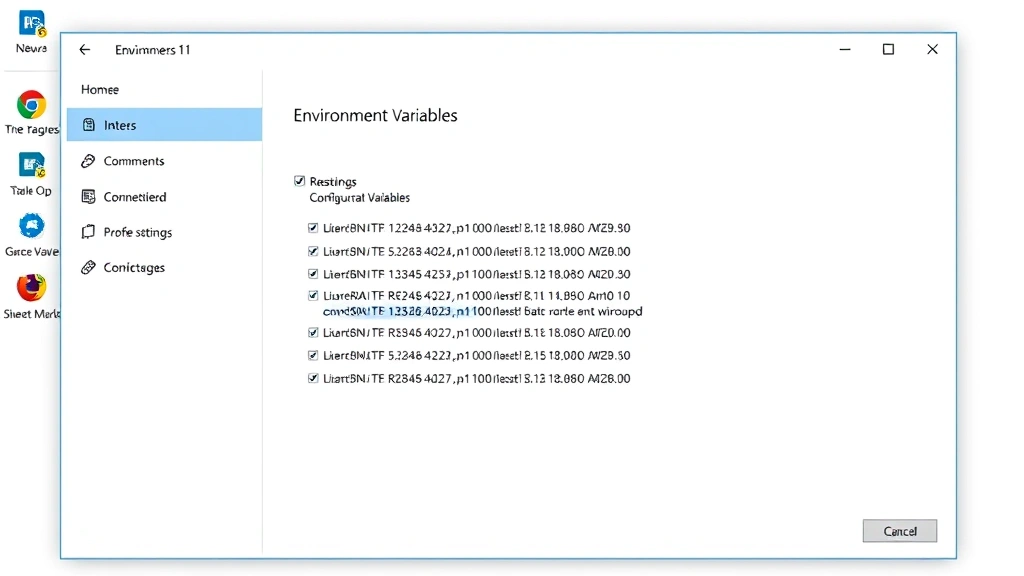
Windows 11: Managing Environment Variables Guide
Environment variables represent fundamental system-level settings that control how applications, processes, and the operating system itself function within Windows 11. These dynamic variables store critical information such as file paths, system configurations, user preferences, and application settings that programs reference during execution. Understanding how to effectively manage environment variables in Windows 11 is essential for developers, system administrators, and power users who need to optimize system performance, configure applications properly, and troubleshoot technical issues.
The evolution of environment variable management in Windows 11 reflects broader trends in system administration and software development. With increased emphasis on containerization, cloud deployment, and cross-platform compatibility, the ability to configure environment variables has become increasingly important for maintaining efficient IT infrastructure. This comprehensive guide explores the mechanisms, methods, and best practices for managing environment variables in Windows 11, providing practical knowledge applicable across diverse professional and technical contexts.
Windows 11 maintains backward compatibility with previous Windows versions while introducing streamlined interfaces for variable management. Whether you’re configuring paths for development tools, setting up database connections, or managing system-wide preferences, mastering environment variable management directly impacts your productivity and system reliability.
Understanding Environment Variables in Windows 11
Environment variables function as named storage containers that hold values accessible to applications and system processes. Windows 11 inherits a sophisticated variable system that traces its lineage through decades of Windows development, yet modernizes the approach for contemporary computing demands. Each variable consists of a name (the identifier) and a value (the data stored), creating a key-value pair system that enables dynamic configuration without modifying application code.
The significance of environment variables extends beyond mere configuration convenience. They enable environment variables in Python and other programming languages to access system information, reference installation directories, and maintain security through credential management. When you install software, configure development frameworks, or set up system paths, you’re fundamentally working with environment variables that dictate how your system operates.
Common environment variables in Windows 11 include PATH, PATHEXT, TEMP, USERNAME, USERPROFILE, SYSTEMROOT, and PROCESSOR_ARCHITECTURE. The PATH variable specifically holds paramount importance as it determines where Windows searches for executable files when you enter commands. Understanding this hierarchical search mechanism proves essential for troubleshooting application launch failures and resolving command-line conflicts.
Windows 11 expands upon traditional variable management by integrating modern system administration practices. The operating system recognizes both legacy batch-style variables and contemporary requirements for cloud-native applications, containerized deployments, and cross-platform development workflows.
System vs. User Environment Variables
Windows 11 distinguishes between two fundamental categories of environment variables: system-level and user-level variables. This distinction creates a hierarchical permission structure that balances security, flexibility, and system stability. System environment variables apply universally to all users and processes on the computer, requiring administrator privileges to modify. These variables typically include system paths, operating system directories, and global configuration settings that affect the entire system’s operation.
User environment variables, conversely, apply exclusively to the currently logged-in user account. Standard users can modify their own environment variables without requiring administrator approval, enabling personalized configurations without compromising system security. This separation reflects Windows 11’s commitment to multi-user environments where different users maintain distinct preferences and configurations.
When Windows 11 processes environment variables, it applies a specific precedence order. User variables override system variables with identical names, allowing individual users to customize settings while maintaining system-wide defaults. This layered approach enables sophisticated configuration scenarios where system administrators establish baseline standards while permitting user-level customization.
The distinction becomes particularly relevant when configuring development environments. A system administrator might establish a system-wide PATH variable pointing to common development tools, while individual developers add user-specific paths for their preferred versions or additional utilities. This flexibility supports heterogeneous development teams working with varying technology stacks and preferences.
Understanding this variable hierarchy proves essential when troubleshooting configuration issues. If an application behaves unexpectedly, checking both system and user variables often reveals conflicting configurations or overridden settings that explain the anomalous behavior.
Accessing Environment Variables Through GUI
Windows 11 provides an intuitive graphical interface for managing environment variables, accessible through the System Properties dialog. To access this interface, right-click “This PC” or “My Computer” on your desktop, select “Properties,” then click “Advanced system settings” in the left sidebar. Alternatively, search for “Environment Variables” directly in the Windows 11 Start menu for immediate access to the configuration dialog.
The Environment Variables dialog presents two distinct sections: user variables (top) and system variables (bottom). Each section displays a list of current variables with their corresponding values. The interface provides buttons for creating new variables, editing existing ones, and deleting variables no longer needed. This straightforward design accommodates users ranging from beginners to experienced administrators.
Creating a new variable involves clicking “New,” entering the variable name in the provided field, and specifying the corresponding value. Windows 11 validates the input to ensure proper formatting, though it permits considerable flexibility in variable naming and value specification. Once confirmed, the new variable becomes immediately available to applications, though many programs require restart to recognize changes.
Editing existing variables follows a similar process. Selecting a variable and clicking “Edit” opens a dialog where you can modify either the name or value. For PATH variables specifically, Windows 11 provides an enhanced interface displaying each path entry separately, enabling granular management of the search path without risking syntax errors from manual editing.
The GUI approach offers several advantages for users uncomfortable with command-line interfaces. It provides visual confirmation of variable creation, displays all current variables in an organized manner, and reduces the risk of syntax errors. However, bulk operations or scripted configurations benefit from command-line approaches, which we’ll explore subsequently.
Command-Line Methods for Managing Variables
Windows 11 command-line environments—both the traditional Command Prompt and the modern PowerShell—enable programmatic environment variable management. These approaches prove particularly valuable for automation, scripting, and remote administration scenarios. The SET command in Command Prompt displays all current environment variables or creates new ones through simple syntax: SET VARIABLE_NAME=value.
PowerShell provides enhanced capabilities through the $env: prefix, allowing direct access to environment variables as PowerShell objects. The command $env:PATH displays the current PATH variable, while $env:VARIABLE_NAME=value creates or modifies variables. PowerShell’s object-oriented approach enables sophisticated variable manipulation, conditional logic, and integration with other system administration tasks.
For persistent variable creation affecting all future sessions, both Command Prompt and PowerShell offer methods to modify system-wide settings. The SETX command in Command Prompt creates permanent environment variables, accepting parameters to specify system or user scope. The syntax SETX VARIABLE_NAME value establishes a user-level variable, while SETX VARIABLE_NAME value /M creates a system-level variable requiring administrator privileges.
PowerShell users can accomplish similar tasks through environment variables in Docker Compose and other containerized environments using [Environment]::SetEnvironmentVariable() method. This approach integrates seamlessly with PowerShell scripts and automation workflows, enabling dynamic variable management within broader infrastructure-as-code initiatives.
The command-line approach excels in scenarios requiring batch operations, remote management, or integration with automated deployment pipelines. System administrators frequently leverage these methods to establish standardized configurations across multiple computers, ensuring consistency and reducing manual configuration overhead.
Setting Path Variables for Applications
The PATH variable represents the most frequently modified environment variable in Windows 11, determining where the operating system searches for executable files when you enter commands. Properly configuring PATH variables enables seamless access to development tools, utilities, and applications without specifying complete file paths. This seemingly simple variable profoundly impacts daily workflow efficiency and system usability.
Adding a directory to the PATH variable involves appending the directory path to the existing PATH value, separated by semicolons. For example, if you install a development tool in C:\Tools\MyApp\bin and want to access its executables from any command prompt, you would add C:\Tools\MyApp\bin to your PATH variable. Windows 11 then searches this directory when resolving command names, enabling direct execution without full path specification.
Common scenarios requiring PATH modification include installing programming language interpreters (Python, Node.js, Java), development tools (Git, CMake, Docker), and system utilities. Many installers automatically modify PATH during installation, though manual intervention sometimes becomes necessary when installing portable versions or managing multiple tool versions.
The order of entries in the PATH variable matters significantly. Windows 11 searches directories in the order listed, executing the first matching executable found. This behavior enables version management—by positioning a specific tool directory before system defaults, you can ensure your preferred version executes regardless of other installations. Developers frequently leverage this mechanism when maintaining multiple language versions or development framework iterations.
Troubleshooting PATH-related issues often involves checking the variable’s contents and verifying that required directories exist and contain expected executables. The command echo %PATH% in Command Prompt or $env:PATH in PowerShell displays the current PATH value, facilitating diagnosis of configuration problems.
Advanced Configuration Techniques
Beyond basic variable creation and PATH management, Windows 11 supports sophisticated configuration scenarios that address complex system administration requirements. Environment variable expansion enables variables to reference other variables, creating hierarchical configurations that maintain consistency across multiple settings. For instance, %USERPROFILE%\AppData\Local references a user-specific directory without hardcoding the username.
Batch files and PowerShell scripts can programmatically manage environment variables, enabling automated configuration workflows. Scripts can detect system conditions, install software, and establish appropriate variable configurations without manual intervention. This approach proves invaluable for organizational deployments where hundreds of computers require identical configurations.
Windows 11’s integration with cloud services and containerization technologies introduces additional complexity to variable management. When deploying applications to cloud platforms or containerized environments, environment variables serve as primary configuration mechanisms, replacing traditional configuration files. Understanding how to properly structure and validate variables for these deployment scenarios becomes increasingly important as organizations embrace cloud-native architectures.
Registry-based variable configuration offers another advanced avenue for Windows 11 administrators. The registry stores environment variable definitions, and direct registry modification enables bulk operations or configurations that GUI and command-line tools don’t readily support. However, registry modification requires careful attention to avoid system instability, and most scenarios benefit from using standard management tools instead.
Integration with comprehensive technical resources and documentation helps administrators navigate these advanced scenarios. Professional system administrators frequently maintain detailed documentation of custom variables and their purposes, facilitating knowledge transfer and troubleshooting.
Troubleshooting Common Issues
Despite careful configuration, environment variable issues occasionally arise in Windows 11. Applications failing to find required files often indicate PATH variable problems. When a utility reports “command not found” or “file not found,” verifying that the required directory appears in PATH and contains the expected executable should be your first diagnostic step.
Variable changes sometimes fail to take effect immediately. Many applications cache environment variable values at startup, requiring restart to recognize modifications. Command Prompt and PowerShell windows opened before variable changes also fail to reflect new values; opening fresh windows accesses updated configurations. This behavior occasionally causes confusion, particularly for administrators expecting immediate results.
Syntax errors in variable values can cause subtle failures. Paths containing spaces require quotation marks in many contexts, and special characters may require escaping. When encountering unexpected behavior, carefully examining variable values for formatting issues often reveals the root cause.
Conflicting variables can produce puzzling results. When multiple PATH entries contain similarly-named executables, Windows 11 executes whichever appears first in the search order. Developers occasionally encounter this issue when multiple tool versions coexist on the same system. Examining PATH order and selectively removing or reordering entries resolves these conflicts.
System-wide variables sometimes conflict with user-level variables bearing identical names. In such cases, the user-level variable takes precedence, potentially overriding intended system behavior. Checking both system and user variable collections when troubleshooting configuration issues prevents overlooking conflicting definitions.
Performance degradation occasionally correlates with excessively long PATH variables containing numerous directories. Each command execution requires searching through all listed paths, and bloated PATH values can introduce measurable delays. Periodically auditing PATH variables and removing obsolete entries maintains optimal system responsiveness.
For developers working with environment variables in Python and other frameworks, understanding how different tools interpret variables proves essential. Some applications expect variables in specific formats or locations, requiring research into tool-specific documentation.
FAQ
How do I permanently set an environment variable in Windows 11?
Use the Environment Variables dialog (accessible via System Properties) to create variables through the GUI, or employ the SETX command in Command Prompt for command-line configuration. Both approaches create permanent variables surviving system restarts and new sessions.
What’s the difference between system and user environment variables?
System variables apply to all users and processes, requiring administrator privileges to modify. User variables apply exclusively to the current user account and can be modified without administrator access. User variables override system variables with identical names.
How do I add multiple paths to the PATH variable?
Separate each directory path with semicolons (;) within the PATH variable value. Windows 11 searches directories in the order listed, so position frequently-used tools earlier in the sequence for performance optimization.
Why isn’t my application finding files after I set environment variables?
Applications often cache environment variables at startup. Close and reopen the application to ensure it recognizes changes. Additionally, verify that the specified directories exist and contain expected files by manually navigating to them using File Explorer.
Can I use environment variables in batch files and scripts?
Yes. Batch files reference variables using %VARIABLE_NAME% syntax, while PowerShell uses $env:VARIABLE_NAME. Both environments enable sophisticated variable manipulation, conditional logic, and automated configuration workflows.
How do I view all current environment variables?
In Command Prompt, use the SET command without parameters. In PowerShell, use Get-ChildItem env: or $env: with tab completion. The Environment Variables dialog also displays all configured variables with their values.
What happens if I delete a critical environment variable?
Deleting essential variables like SYSTEMROOT or PATHEXT can cause system instability or prevent applications from functioning. If you accidentally delete critical variables, restore them by reviewing Windows 11 documentation or system restore capabilities. Most standard variables can be safely recreated with documented default values.